
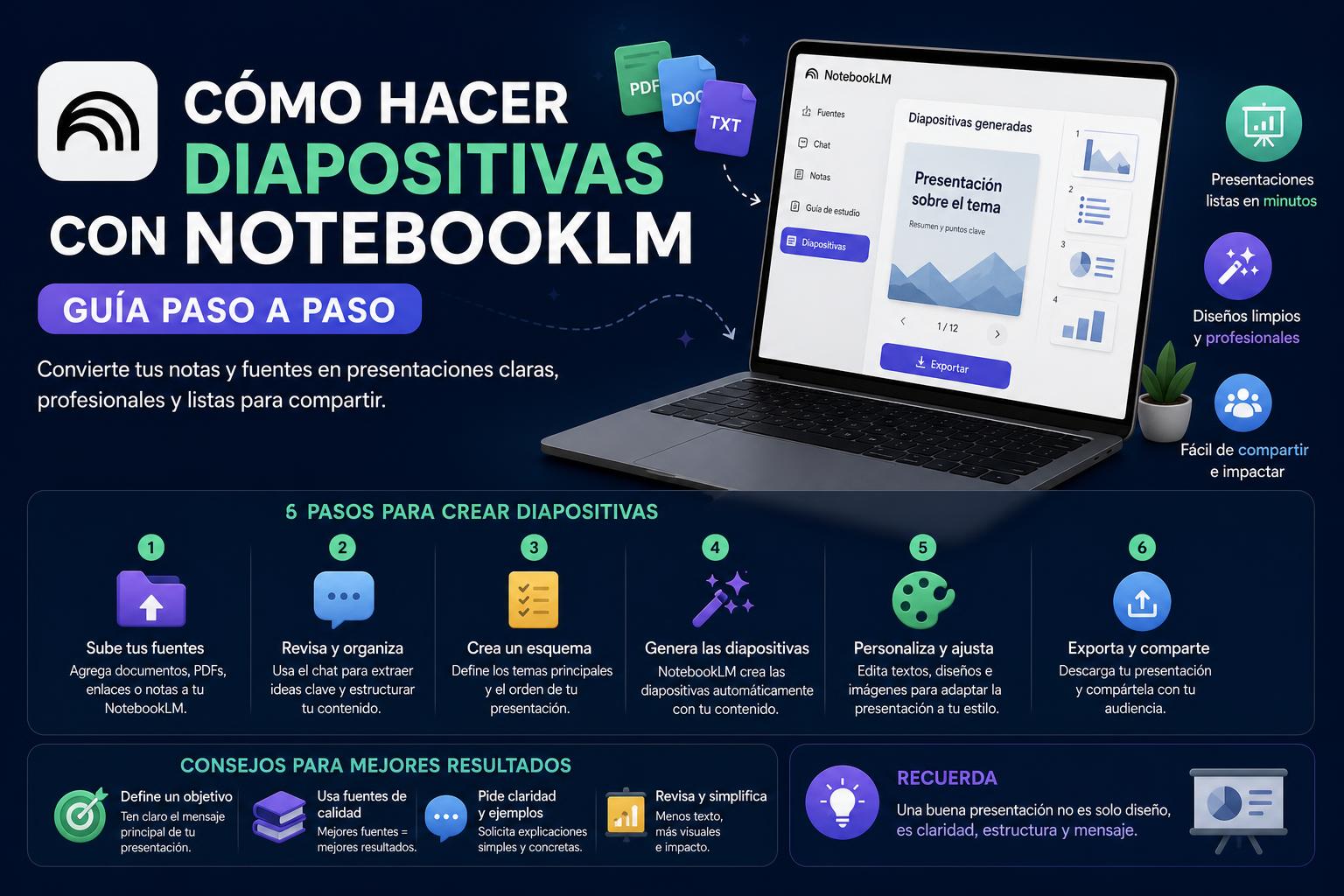
- NotebookLM allows you to transform documents, PDFs or links into presentations automatic in a few minutes.
- The export of presentations is limited to PDF files, making direct editing difficult.
- Tools like PDNob PDF Editor make it easy to convert and edit these PDFs into other formats like PowerPoint.
NotebookLM has revolutionized how many users approach creating presentations from large amounts of information: from academic papers to reports, meeting notes, and video summaries. This Google tool offers a fast track to well-organized slides without spending hours manually copying, pasting, and formatting —something that, until recently, was only possible with traditional programs like PowerPoint or Google Slides. However, as we'll see, getting the most out of its features requires a thorough understanding of how it works, its current limitations, and different alternatives for managing and editing the final result.
Recently, there has been considerable interest in NotebookLM's ability to create almost automatic presentations using artificial intelligence, although not all expectations are fully met due to some formatting and editing limitations. Even so, it's possible to get great results by combining the steps correctly, adjusting the appropriate parameters, and using the right tools to transform the results into editable documents, if needed. Here's a comprehensive and straightforward, step-by-step guide to help you prepare, generate, and modify your presentations using NotebookLM and other supporting solutions.
What is NotebookLM and what is it used for?
NotebookLM is an application developed by Google that functions as an AI-enhanced smart note-taking environment (currently Gemini 1.5 Pro) that allows users to summarize, analyze, and transform large amounts of information from various sources. One of its most popular uses is the automatic generation of slide presentations, especially useful for education, research, and professional work.
One of the most interesting aspects of NotebookLM is its ability to extract, synthesize, and structure relevant data solely from the files, web links, or PDF documents you upload yourself. Forget about haphazardly "pulled from the internet" results: NotebookLM doesn't crawl the web or add information not provided by the user . Therefore, you always have control over the origin and updating of your content.
How does creating presentations work in NotebookLM?
NotebookLM's presentation creation process uses AI to transform input materials into a structured PDF with slides . The tool detects titles, headings, and bullet points, synthesizing key ideas and quickly generating an engaging presentation. This approach makes it ideal for summarizing lengthy texts or transforming scattered data into a compelling visual session.
- No additional software installation requiredEverything is done from the browser, from any device.
- Analyze only your sources: only what you upload (PDF, web page, Google Docs, YouTube video…)
- It offers a clear structure: creates headings, bullet points, and automatic topic separation.
- Aim for efficiencyThe whole process usually takes minutes, not hours.
[related url=»https://www.orienta21.com/que-es-notebooklm/»]
Advantages of using NotebookLM for presentations
The main advantages include:
- SpeedIn just a few minutes you can go from a 100-page report to a summary easy-to-explain visual.
- Synthesis and clarityAI identifies and extracts only the most relevant points.
- Personalizing the approach: allows you to choose the level of detail, language and style before generating each presentation.
- Drastic time savingsIt is perfect for students, teachers, professionals, and anyone who needs to transform a lot of content into something visual.
- Usable result for quick presentationsThe generated PDF is valid for projecting as is or printing.
Major limitations of NotebookLM today
It's not all sunshine and rainbows, so it's worth knowing the current limitations of the presentation function in NotebookLM :
- Exports only to PDFThe generated file is always a PDF, which prevents you from easily editing the slides or transferring them directly to PowerPoint/Google Slides.
- The design is basicThe resulting slides have a clean, understated style, with simple typography and structure. If you're looking for something highly visual or "designer-oriented," you'll need to modify the output using other tools.
- Internal editing is not allowed.Neither images nor text boxes can be modified once exported.
- Possible minor typographical errorsAs with any automatic generation, there may be errors or minor problems in the conversion.
- The images are integrated into the backgroundThey cannot move or change afterwards.
- Some features are only available on personal Google accounts.Workspace accounts (Enterprise/Education) may see limitations, especially regarding sharing public links.
Key preparations before creating your slides in NotebookLM
To avoid disappointment, it's best to spend a couple of minutes configuring the project parameters before launching the automatic generation . Here are the essential preliminary steps :
- Choose and filter sources wisely.Only upload documents, articles, links, or PDFs that will provide relevant material for the presentation. If you add too many disparate or irrelevant sources, the AI may scatter the ideas, making the presentation longer or more incoherent.
- Review the previous settingsAccess the 'Studio' panel and select the 'Presentation' option. There you can define the level of detail (short, medium, long), generation language, style, etc.
- Decide on the type of presentation: between "detailed" (more depth for academic reports or research) and "presenter slides" (briefer, schematic and visual).
- Define the desired lengthYou can adjust for a quick view (fewer slides), a balanced explanation, or a much more extensive presentation.
- Write a clear instructionThe more specific and concrete the phrase ("generate 6 slides with the key points about X, in simple language and with examples", for example), the better structure and result your generated PPT will have.
- Choose the output language carefully.This is essential if your audience is international or from different Spanish-speaking communities. Make sure to adjust it to avoid surprises.
Step by step: Create your presentation with NotebookLM
The complete process for creating slides with NotebookLM, from the initial idea to obtaining the downloadable PDF :
- Accede to NotebookLM and log in with your Google accountClick on “Test NotebookLM”.
- Upload the files or links you want to convert in presentation format (PDFs, Google Docs, web, videos, etc.). Prioritize clear and well-structured materials.
- Open the 'Studio' panel and locate the 'Presentation' function.Here you can configure all the details: appearance, focus, depth of field…
- Choose the style and durationDecide between detailed or simple presentation, and select the number of slides or level of detail you want.
- Enter a precise instruction in the corresponding box to guide the AI (for example, "create 8 slides with the article's conclusions and suggestions for improvement").
- Click on 'Generate'NotebookLM will process your request and it will take from a few seconds to 2-3 minutes depending on the size of the uploaded files.
- Review the generated draftIf you see shortcomings or inaccuracies, readjust the instruction, change the style, or remove unnecessary fonts and repeat the process.
- When you are satisfied, download the final PDF by clicking on 'Download'.
Remember to analyze the result and, if you need to share it, check the link restrictions according to your account type (Google personal vs Workspace).
Advanced tips for improving slide generation
- Control the extension: moves the selector between short, medium and long; directly affects the number of slides and depth level.
- Make use of thematic instructions: "summarize in key points", "use visual examples", "add simple graphics", etc.
- Take care of the source filesThe cleaner, clearer, and better structured your original documents are, the better the organization of the final slides will be.
- Request visual elementsYou can explicitly request "include tables", "use diagrams" or "add sample images" in the instructions.
- Pay attention to the languageThe generation adapts well to several languages, but be sure to specify it.
What to do if the presentations feature doesn't appear or fails
It's possible that slideshow generation may be temporarily unavailable or that the presentation button may appear disabled. These are the most frequently effective solutions :
- Check the account typeSome Google Workspace profiles don't have full access to all features (linking, co-editing, etc.). Ideally, you should use a personal Google account whenever possible.
- Patience between attemptsAfter generating many presentations in a short period, a temporary restriction may appear. Waiting a few minutes, logging out, and logging back in usually resolves this.
- Make sure you have loaded a valid fontNotebookLM requires that at least one document has been uploaded to enable slide generation.
- Change and update the source files: Delete and re-upload the PDFs or Google Docs if they are not generated correctly.
- Improve instructionSaying "generate six short slides with the key points" usually works much better than simply "give me a presentation".
Can NotebookLM presentations be easily edited or converted?
The main challenge with using NotebookLM is the inability to immediately export to editable formats like PowerPoint . Everything is downloaded as a PDF, so any changes—whether to the text, design, or structure—require using external tools. This is where PDF editors with OCR, such as PDNob PDF Editor , come in.
Why is PDNob PDF Editor recommended? It's very useful because it converts static PDFs from NotebookLM into fully editable documents, applying advanced OCR (Optical Character Recognition) . This allows you to select, correct, copy, or rearrange text, separate images, and—very importantly— convert the resulting presentation to PowerPoint, Word, or other editable formats.
- High-precision OCR recognition: converts almost all texts into editable boxes.
- automatically divide the elements: separates titles, texts and images.
- Confidential processingThe manipulation is local, without sending files to the cloud.
- Ease of use: ideal for quick adjustments before exposing, printing or sharing.
Instructions for editing NotebookLM PDF presentations with PDNob PDF Editor
- Download and install PDNob PDF Editor on your computer (available for Windows and Mac).
- Open the 'OCR PDF' option and select your file exported from NotebookLM.
- If prompted, activate the OCR module to scan to editable textThe program will analyze the structure and convert all the boxes on the slide into editable elements.
- Make the necessary changes: corrects spelling errors, modifies titles, adjusts graphics… Everything is editable from here.
- Export the final presentation in the format you prefer: PowerPoint, PDF again, or even Word for advanced text editing.
Alternatives and additional methods for transforming PDFs from NotebookLM
If you want to convert NotebookLM slides to PowerPoint but don't have PDNob PDF Editor , there are other procedures that can solve the problem:
- Online PDF to PPT convertersThere are free web tools (such as SmallPDF, ILovePDF, PDF2Go, etc.) that allow you to convert a PDF to PowerPoint. The problem is that sometimes the conversion isn't perfect (formatting may be lost or everything may be converted to an image), but for simple cases, they can get you out of a bind.
- Manually, combining Google Slides or PowerPointYou can copy and paste the text and images from the PDF slides (using any online text extractor with OCR) and then rearrange the layout within the presentation editor. It's laborious, but effective if you only need minor changes.
- Reuse the generated PDF as a new source In NotebookLM: upload your PDF as a new source and ask the AI to summarize, modify, or reorganize the content differently.
Quick comparison: NotebookLM vs. other automated presentation tools
Today, there are several commercial alternatives that convert text into slides, such as ppt.ai (NotebookLM PPT), Gamma, Plus AI, and others. Below, we show you the differences in terms of user experience:
- NotebookLMIt only uses the information you upload, giving you maximum control over the source quality. It's fast, free, and easy, but it only exports to PDF and the design is basic.
- ppt.aiIt allows you to create automatic presentations by pasting text, choosing from hundreds of visual templates. The result is more visually appealing, customizable, and exportable in PPT/PDF, but many advanced features and premium options are paid.
- Gamma and Plus AIMore oriented towards editorial and collaborative generation, they also accept texts from more sources in the style of NotebookLM, although the analysis of complex documents can vary in quality depending on the model used and they do not always respect the original materials.
Don't worry if you feel like you're lacking options: you can combine several of these tools depending on your needs (NotebookLM for quick summary conversion, ppt.ai if you want visual design, and PDNob for editing the generated output).
Practical recommendations for getting the most out of NotebookLM
For the best experience:
- Prepare your source file thoroughly: remove duplicates, correct errors, add clear titles.
- Always use the most accurate instructions possible. to guide the AI, detailing both the format, number of slides, as well as the tone or final objective.
- Validate the result before closing the projectCheck the content, spelling, that nothing important is missing, etc.
- Tool combinationNotebookLM is perfect for the first draft, OCR or PDF editors (like PDNob) to fine-tune and customize the result, and ppt.ai if you're looking for a particularly striking design.
With the rise of AI tools like NotebookLM, creating presentations has become much faster and more accessible for everyone, especially those who need to summarize and clearly display information from complex documents. While exporting as a PDF limits direct customization, there are simple alternatives for editing, converting, and enhancing the final product. By carefully managing the preparation, using precise instructions, and employing the right tools, you can achieve a professional result in minutes, saving time and effort compared to traditional methods.