
- Google Classroom It facilitates the delivery and management of educational tasks in a centralized manner.
- It is possible to attach files, create new documents, or answer questionnaires all from the platform.
- Canceling submissions and correcting assignments is permitted as long as the deadline is respected.
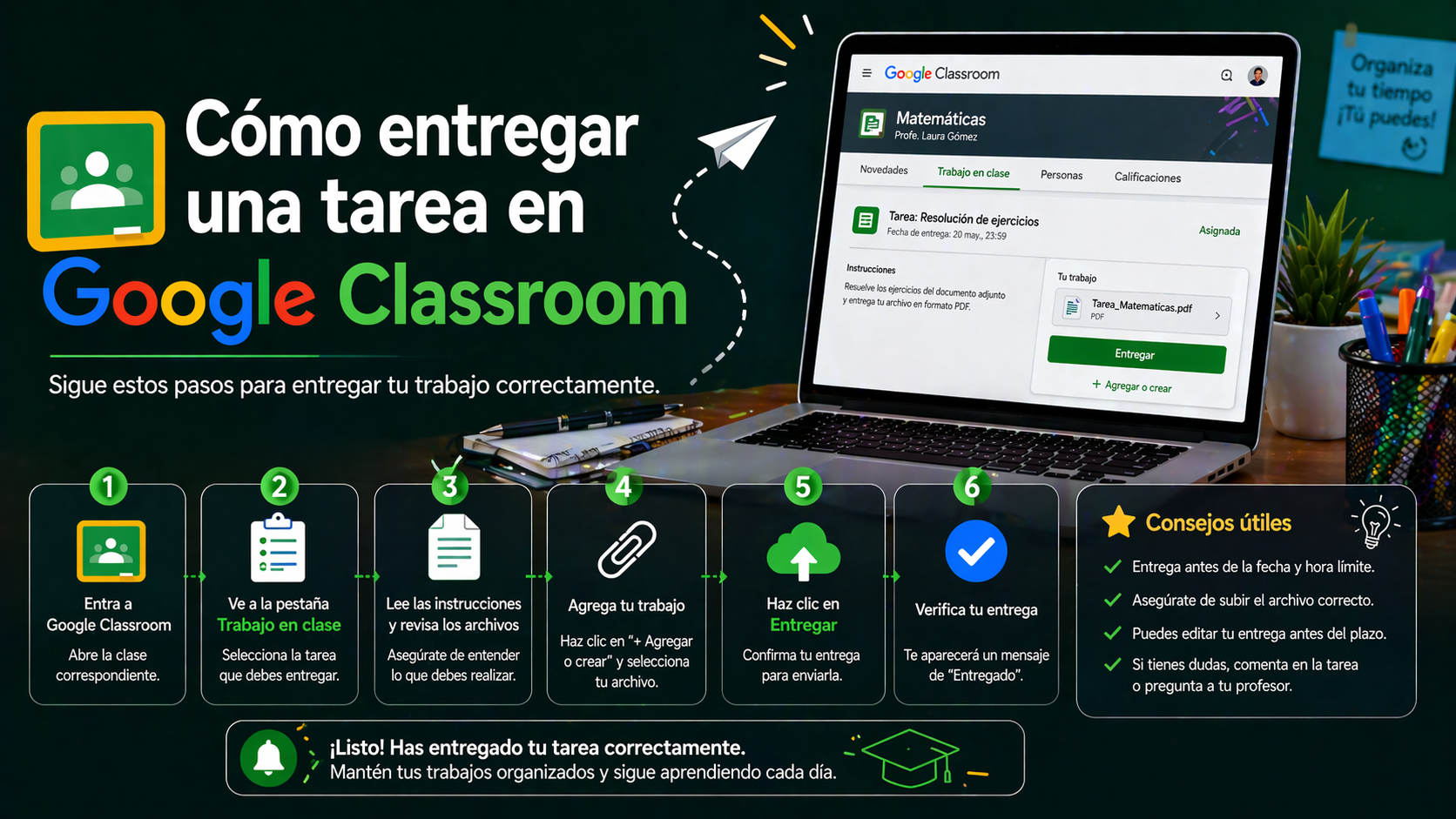
Using digital tools for learning is now part of daily life in most educational institutions, but it's not always easy to become familiar with all their functions. One of the most popular platforms, especially in recent years, is Google ClassroomThis platform allows both teachers and students to manage assignments, communicate easily, and share educational materials from any device. Understanding how it works and, above all, how to submit an assignment correctly is essential to taking full advantage of its benefits.
If you're facing your first few days as a user of Google Classroom If you want to ensure you submit your assignments correctly, here's a comprehensive and easy-to-follow guide so you don't miss a thing. We'll break down all the steps, tips, submission methods, and key points to help you get your assignments to your teacher on time and in good working order.
What is Google Classroom and how does it help students?
Google Classroom It is Google's learning management platform, which is part of the suite of tools Google Workspace for Education (formerly G Suite for Education). It is designed to facilitate interaction between teachers and studentsThis tool streamlines the submission and collection of assignments and centralizes academic communication. With it, teachers can create virtual classes, assign work and materials, and track each student's progress. Students, in turn, can submit assignments, view feedback, and receive grades, all digitally and intuitively.
First steps: Access your class and locate your assignments
To begin, you will need to log in to Google ClassroomYou can do this with your school or college educational account (recommended for full access to features) or with a personal Gmail account. If you're not yet in a class, you can join in two ways: by entering the code that the teacher will provide youYou can join by accepting an invitation sent to your email or via a link. Once inside, you'll see several tabs: bulletin board, classwork, people, and grades.
The first step in submitting an assignment is locate the assigned work. To do this, you must:
- Enter the corresponding class.
- Select the tab Homework, where all the tasks, quizzes and materials published by the teacher are displayed.
Here you will find the task titles, the deadline, and if you click on a specific task, you can see the instructions and attachments needed to complete it.
Options for submitting assignments in Google Classroom
En Google Classroom You can submit your work in different ways depending on its nature:
- Attaching files created outside the platform (for example, Word documents, PDFs, images, or external links).
- Creating documents directly from Classroom through Google Docs, PresentationsSpreadsheets or Drawings.
- Sending responses to questionnaires that the teacher has prepared using Google Forms.
- Editing a document assigned by the teacher, which already has your name and is associated with your account (very common when they create personalized copies for each student).
Step by step: How to submit an assignment in Google Classroom
The delivery process for each of the possible cases is detailed below:
1. Upload a file from your device
- Access the tab Homework and click on the relevant task. Use View task to access detailed instructions.
- In the section Your work, Select Add or create.
- Choose the file source (Google Drive(Link, File). You can upload files from your computer or mobile device, or attach links to external websites/files.
- Select the file and press Add.
- If you want to add more files, repeat these steps. You can also include photos taken with your mobile phone or from your image gallery.
- Optionally, you can include a message for the teacher in the box Private comments and click on Publish.
- When everything is ready, press Deliver and confirm the decision in the box that will appear. The status will change to “Delivered”.
RememberYou can only submit files before the deadline set by your teacher. If you submit them after, your assignment will be marked as 'late' or 'late', and your teacher will be able to see it.
2. Create and submit a new document from Classroom
- Enter the assignment you wish to submit and navigate to Add or create.
- Select the type of document you want CreateGoogle Docs, Slides, Sheets, or Drawings.
- The new file (with your name) will open automatically for you to work on. Complete the task and verify that everything is finished.
- Return to the task screen and press Deliver. Confirm the action.
This method is especially useful If the teacher requires the work to be in Google format, it greatly facilitates editing, as it is automatically saved to your cloud.
3. Submit a questionnaire via Google Forms
- Locate the task that includes a quiz and click on See instructions.
- Click on the attached form. Answer all the questions requested.
- Click on Submit from the form itself.
- If the quiz was the only requirement for the assignment, it will automatically appear as 'submitted'. If you need to upload anything else, review the rest of the instructions and upload the additional files if necessary.
4. Complete a task with an assigned custom document
Often, teachers attach files that already include your name in the title; these are personalized documents for each student, where you can edit, complete and submit everything from Classroom. In this case:
- Locate the class (in Homework) and enters the corresponding task through See instructions.
- Click on the attached file with your name.
- Edit the document as instructed: add your answers, text, drawings, graphics, etc.
- When you're finished, press Deliver from Classroom or from the document itself (top right), and confirm the action.
The teacher can monitor your progress. even before officially submitting the assignment, which is a good opportunity to ask for prior feedback if you need it.
5. Mark tasks as complete
Some tasks don't require you to attach anything, but simply mark that you've completed them (for example, reading a chapter or watching a video). In that case:
- Go into the relevant task and read carefully what you have been asked to do.
- If it's just a confirmation, look for the button. Mark as completed or "Mark as completed task" and click on it. Confirm your selection if prompted.
- You can take this opportunity to send a private comment if you feel it is necessary.
The system will record that the task has been completed. EyeIf you are late and mark it as completed after the deadline, your teacher will also see it and it will be marked as a late submission.
Can an assignment that has already been submitted be withdrawn?
Luckily, if you submitted your assignment before the deadline but need to change something (you forgot to attach a file, you made a mistake…), There is a possibility of cancelling the delivery. The process is simple:
- Within the same task, click on Cancel delivery o Cancel delivery.
- Correct what is necessary: you can upload new files, delete previous ones, or change the created content.
- Press again Deliver before the deadline.
ImportantWhen you cancel a submission, your task will revert to "pending" status until you confirm submission again. If you fail to resubmit it before the deadline, it will be considered "late."
Common mistakes and how to fix them
- Do you see that the platform displays an error when you press DeliverAre you unable to attach files or are you seeing a strange message? There may be a connection problem or a temporary issue with the file.
- In these cases, it's best to communicate. Quickly with your teacher so that it marks the incident and you can demonstrate your intention to deliver on time.
- Check that the files are in the allowed format and do not exceed the maximum size (sometimes, a very large pdf or a video that is too long can crash the upload).
- Make sure your browser is up to date and try again after refreshing the page.
If the task is just a form and you can't access it, check that you are logged in with the correct account (the one from the school or the one that gave you access to Classroom).
Tips to avoid problems with assignment submissions
- Organization above allUse the Classroom calendar to see all assignments and not miss any deadlines.
- Always submit your assignment in advance.That way, if any problems arise, you'll have time to solve them.
- Check your internet connection before sendingSometimes a network failure can ruin the delivery.
- Read the instructions carefully and attach only what is requested.Avoid unnecessary files and, if you have any doubts, ask the teacher before sending.
- Don't forget to use private comments to clarify any aspect directly with the professor.
- Cancel the delivery only if absolutely necessary And remember to resubmit the assignment ahead of schedule.
What happens if I submit the assignment late?
When you submit an assignment after the date indicated by the teacher, Classroom will automatically mark it as "late" or "late"The instructor will take this delay into account when evaluating your work. If you have a valid reason, please communicate it as soon as possible via private message.
Other useful features of Google Classroom for students
In addition to submitting assignments, Google Classroom It allows for fluid communication in the bulletin board tab, where you can see announcements and participate in discussions when the teacher allows it. In the section People You can see the rest of your classmates and, in Grades, clearly track your grades. To learn more about how to take advantage of all the features, you can consult the official Google Classroom help page or specialized media resources such as educaciontrespuntocero.com.
Differences between submitting an assignment as a file and as a created document
- Deliver external filePerfect when you've worked with non-Google tools, or if you need to upload photos, PDFs, or links. Remember to always check that the file is saved correctly and in a compatible format.
- Create document in Classroom: Very convenient when you want to avoid compatibility issues or need to follow a template provided by the teacher.
- In both options you can combine files and add more than one depending on the needs of your delivery.
When submitting work in Google Classroom, The most important is Read carefully the instructions given by the teacherAlways check that the submission has been registered (the status changes to "submitted" or "completed") and save copies of the files in case of any issues. If you follow these tips and take advantage of all the options the platform offers, you'll find that taking this step in your digital learning will be much easier, more organized, and more productive.